How to Turn Any Static Portrait or Pet Photo into a Smooth AI Dance Video (Creator Guide)
 Angry Dance Studio Team
A practical step-by-step guide covering photo framing, lighting, limb clearance, motion templates, and model selection for clean, artifact-free 9:16 AI dance and animation clips.
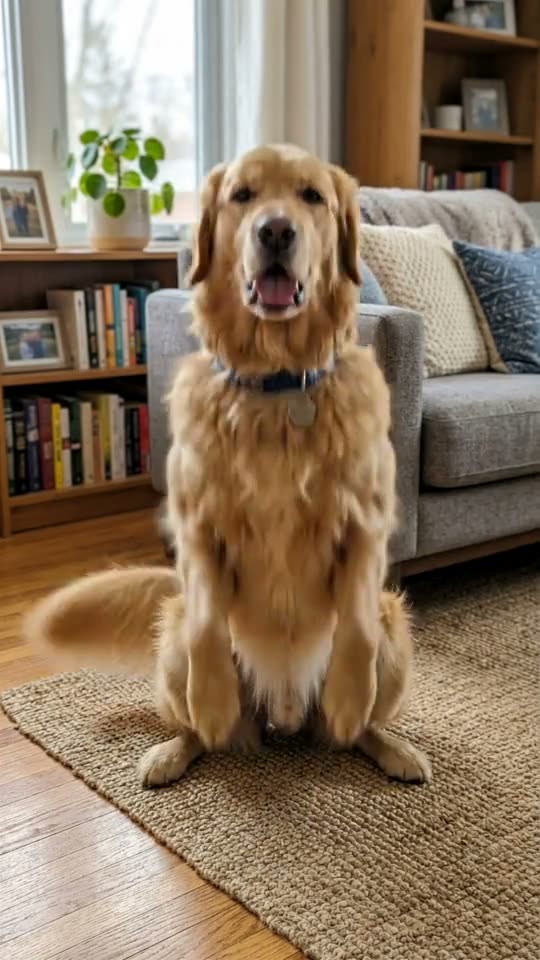
Why do two creators run the exact same AI dance effect—one getting a crisp, believable 5-second TikTok clip while the other sees warped paws, blurred fingers, or a drifting background?
In almost every case, 80% of output quality is decided before you click Generate, right inside the source JPG or PNG you upload. Image-to-video models treat your uploaded photo as frame zero: every hidden limb, harsh shadow, or tight crop forces the model to guess geometry mid-motion.
This practical playbook walks through how to prep portrait, baby, couple, and pet photos for smooth motion—and which live template or studio model to pick on Angry Dance.
1. The 5-Point Source Photo Checklist
Before uploading to Angry Dance AI, Dog Dance AI, Cat Dance AI, AI Baby Dance, or the Image-to-Video Studio, check your image against five rules:
- Leave 15%–20% headroom and footroom: When a pet stands on its hind legs or a person bounces to a beat, their head rises and arms swing outward. Tightly cropped face selfies force the model to hallucinate shoulders, hips, and legs from scratch.
- Keep limbs unoccluded: Avoid photos where a dog is tucked behind sofa cushions, a baby is strapped behind a high-chair tray, or a person's hands are buried deep inside heavy coat pockets. Visible paws, hands, and shoes give the motion model clean anchor points.
- Use even, front-facing light: Soft daylight near a window or outdoor shade preserves eye catchlights and fur texture as the head turns. Strong backlighting or heavy nightclub neon causes facial features to flicker across frames.
- Pick calm, uncluttered backgrounds: Solid walls, tidy living rooms, lawns, or sidewalks stay rock-steady when using static-camera prompts. Busy crowds or moving traffic behind your subject invite background swimming.
- Stick to sharp JPG or PNG originals: Upload the original camera-roll file rather than a thrice-compressed messaging screenshot. Clean edges around ears, hair, and whiskers dramatically improve motion separation.
| Subject Type | Ideal Framing | Common Pitfall to Avoid | Recommended Starting Effect |
|---|---|---|---|
| Dogs & Cats | Full body sitting or standing, eye-level lens | Top-down angle hiding hind legs | Dog Dance AI / Cat Dance AI / Groomer vs Dog AI |
| Babies & Toddlers | Full body sitting or standing in bright indoor light | Blankets or toys covering both arms | AI Baby Dance |
| Solo Portraits | Head-to-waist or full-body vertical shot | Extreme chin-to-forehead crop | Angry Dance AI / Give It All to Me AI / Lion Riding AI |
| Couples, Friends & Cars | Clear side-by-side portraits or 3/4 outdoor car angle | Large depth gap or cropped hood | AI Hug Video / Mini Workers Car Wash AI |
2. One-Click Effects vs. Two-Step Restyle + Animate
Depending on what your starting photo looks like, there are two reliable workflows:
Workflow A: Direct 1-Click Motion Templates (Fastest)
If your photo already has clean lighting and framing, go straight to a pre-tuned effect. Each effect locks in tested camera directives (such as Static camera to eliminate background warping) and vertical 9:16 framing for TikTok, Reels, and Shorts:
- Angry Dance AI & Give It All to Me AI: Turn any solo portrait into a furious finger-pointing stomp dance or a smooth heavy-bass shoulder-bounce groove while keeping facial identity intact.
- Dog Dance AI & Cat Dance AI: Tuned separately for canines and felines—prompting natural hind-leg balance, paw waves, or sassy grumpy-cat hip sways over 5 seconds.
- AI Baby Dance: Preserves the exact nursery or living-room background while animating joyful hip wiggles, arm swings, and giggles (only upload photos of children for whom you are the parent or guardian).
- AI Hug Video: Guides two people standing in the same frame into a smooth, natural turn and warm embrace under soft lighting (always get permission from everyone pictured).
- Zombie Pet AI: Starts calm for the first beat, then triggers glowing green eyes and a dramatic horror-movie lunge toward the lens—a proven hook format in our 2026 Trend Radar.
Workflow B: Stylized Photo First, Video Second (Maximum Control)
What if your everyday selfie has a messy bedroom background, or you want a stylized character to dance? Restyle the still photo first, inspect the result for 12–15 credits, and then animate your favorite frame in Image-to-Video:
- Generate a clean themed portrait using Self Hug Sketch AI, Colored Sweater AI, AI Christmas Photo, AI Mermaid Filter, AI Muscle Generator, AI Caricature, or a custom prompt in AI Image Generator.
- Download the crisp PNG output and drop it into Image-to-Video.
- Write a concise, single-action motion prompt (see formula below).
Pro tip: This two-stage composite architecture also runs automatically behind our viral scene pranks—including Lion Riding AI, Groomer vs Dog AI, Heart of the Ocean AI, and Mini Workers Car Wash AI—chaining an identity-locked scene edit directly into a 5-second motion pass.
3. Writing Clean Motion Prompts in the Studio
When you move beyond 1-click effects into Image-to-Video, shorter prompts with one clear subject action + one camera rule outperform overloaded paragraphs:
- Formula:
[Subject] + [1–2 specific physical actions] + [Keep subject/outfit/room unchanged] + [Camera behavior] - ** Pet Dance Example:**
The corgi in the photo stands up on its hind legs, bounces happily to the beat, and waves both front paws. Keep the dog and living room exactly as in the photo. Static camera, natural lighting. - ** Portrait Groove Example:**
The person in the photo grins at the camera and performs a smooth, confident shoulder-bounce dance to upbeat music. Keep their face, hairstyle, and outfit identical. Locked tripod camera.
Notice the phrase Static camera (or Locked tripod camera). Asking the model to simultaneously execute complex dance footwork and a 360-degree drone orbit is the number-one cause of limb distortion. Lock the camera when the subject dances; move the camera slowly only when the subject's pose is steady (like riding forward on a lion).
4. Choosing the Right Video Model for Your Budget
Inside Angry Dance's studio, credit pricing updates live as you switch models, resolutions, and clip lengths (5s to 10s):
Kling 2.5 Turbo&Muse Video(20 credits / sec at 720p, 30 credits / sec at 1080p on Muse): Our recommended primary engines for Angry Dance AI, Dog Dance AI, and Cat Dance AI—delivering natural body mechanics, pet fur consistency, and automatic cross-provider fallback protection.Hailuo 2.3 Fast(10 credits / sec) &Seedance 2.0 Mini(8 credits / sec at 720p): Cost-efficient options in the studio for rapid test renders, with optional native audio generation onSeedance 2.0 Mini.
5. Check What Is Trending Before You Shoot
Not sure which theme to test next? Check the live TikTok Viral AI Photo-to-Video & Dance Trend Radar to see which single-photo formats gained the most views over the past 24 hours, or read our 2026 Viral AI Trend Study for the full category breakdown. Then pick a clean full-body snapshot and bring it to life in under two minutes.